
Whitelisting Chrome Extensions in Intune

Firstly, if you haven’t updated Google Chrome on all your devices, go and do so.
Whilst the headlines around CVE-2026-0628 have mostly been exaggerated fearmongering, it has raised a very serious issue for administrators - do you let users install whatever browser extensions they want?
CVE-2026-0628
Before we get into that, let’s have a quick look at what this vulnerability actually is. This is the description on cve.org:
Insufficient policy enforcement in WebView tag in Google Chrome prior to 143.0.7499.192 allowed an attacker who convinced a user to install a malicious extension to inject scripts or HTML into a privileged page via a crafted Chrome Extension. (Chromium security severity: High)
So basically, an extension can manipulate sites that should be privileged and protected can be manipulated by a dodgy extension, giving attackers access to sensitive information.
User Choice vs Admin Control
There are different ways of getting malicious extensions into the Chrome Web Store, but a popular one is to start with a legitimate extension that has no issue passing vetting, then weaponize it with an update at a later date.
Legitimate extensions can also be hijacked, just like anything else, if the developer is compromised.
Given the privilege levels extensions enjoy, it makes sense to only use extensions you absolutely trust on your devices.
Managing Extensions
In Endpoint Manager, create a new configuration policy. Select ‘Windows 10 and later’ as the platform, and ‘Settings Catalog’ as the profile type.
Give it a name, then click next. Click ‘Add settings’.
Search the settings for ‘Google Chrome Extensions’, and select:
Configure extension installation allow list
Configure the list of force-installed apps and extensions
In the policy itself, turn on ‘Configure extension allow list’. This will disable all Chrome extensions except for the any you specify in the section below:
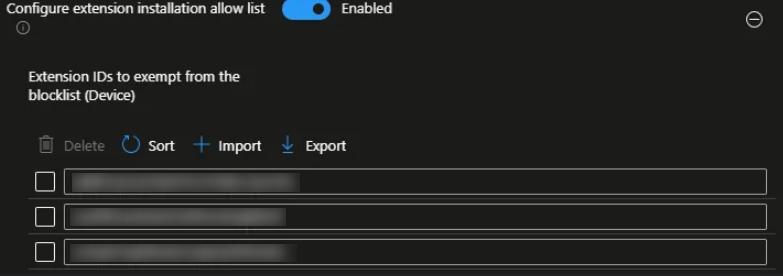
Apply the policy to the relevant groups.
This will remove any existing Chrome extensions that are not explicitly allowed in the whitelist.
Conclusion
Browser extensions can add all kinds of functionality, and users would be forgiven for thinking they can trust the Chrome Web Store, or the Microsoft and Firefox equivalents. That may be fine for their own devices, but as administrators you should really have the same control over browser extensions as you do desktop apps.