
Securing Company Data on Personal Phones

Protecting organisational data no longer stops on the devices handed out - most users sign in on their phones to check emails and files on the go.
In some respects, this is a good thing. It saves the company money because they don’t need to buy every user a phone if they’re happy to use their own.
But from a cyber security perspective, it opens up a can of worms. What happens to the data stored on that device? Who is responsible for the security of that device?
Fortunately, Microsoft App Protection policies allow administrators to take control of the company data and apps on Android and iOS devices without impacting personal data.
Table of Contents
Objectives
In this tutorial, our objectives are as follows:
- Require authentication to access company managed apps.
- Prevent company data being downloaded to the device.
- Be able to wipe data from remote devices without impacting personal files.
Configure App Protection Policies
To configure an App Protection Policy, open Endpoint Manager, and go to Apps, then Protection, and then Create. You’ll need to do this twice, once for Android and once of iOS.
Target Apps
Once you’ve named the policy, the first thing it will ask is what apps you want to protect. There are four options.
Selected Apps
This will let you control exactly which apps you want to protect. Only apps that have the Intune SDK built into them are available to manage.
All Apps
This will select all the apps on that list.
All Microsoft Apps
This will select all the Microsoft apps on that list.
Microsoft Core Apps
This will select only the following apps:
Microsoft Edge, Excel, Office, OneDrive, OneNote, Outlook, PowerPoint, SharePoint, Teams, To Do, and Word.
Data Protection
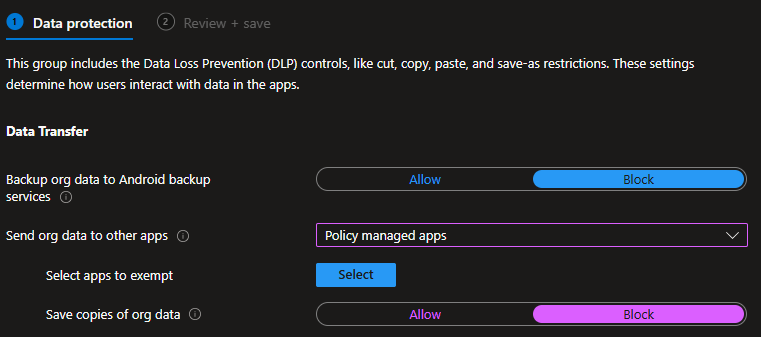
Next up is the data protection policy. This is where we say exactly what the user can and can’t do with the apps we decided to manage. There are some minor differences between the Android policy and the iOS policy.
These are the key settings that will achieve our objectives.
- Backup org data to Android/iTunes and iCloud backup services: Block
- This prevents data being backed up outside of the organisations control.
- Send org data to other apps: Policy managed apps
- This allows the Core Apps to send data between them, but not to anything else
- Save copies of org data: Block
- Prevent downloading data
- Screen capture and Google Assistant (Android Only): Block
- Prevent screen capturing of data and prevent Google Assistant reading the data
- Encrypt org data: Required
- Make sure the data is encrpyted
- Sync policy managed app data with native apps or add-ins: Block
- Prevent data leakage to other apps or widgets
- Printing org data: Block
- Stop users printing data
- Screen Capture (iOS Only): Block
Access Requirements
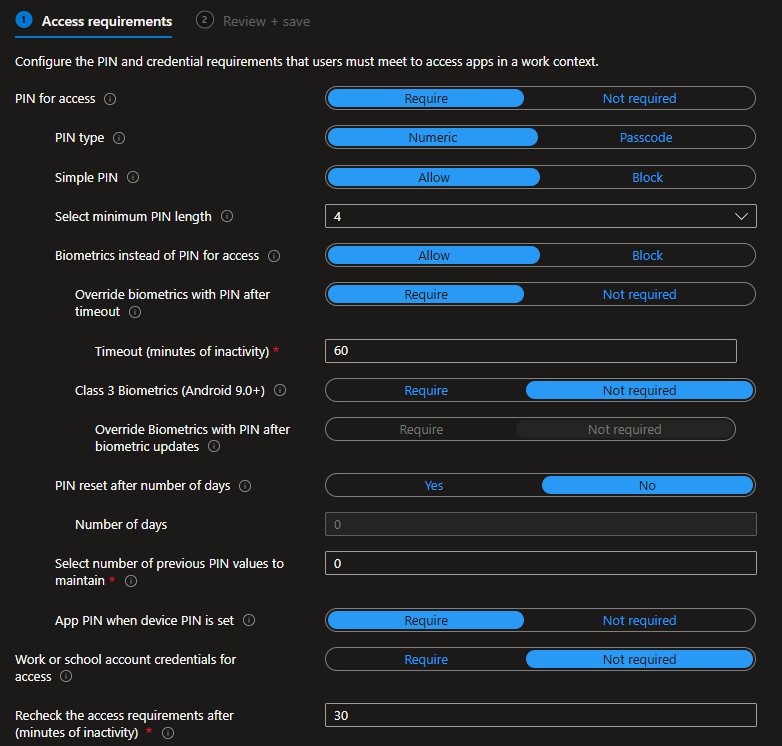
Now we can set any access control we want to apply to the managed apps.
- PIN for access: Require
- Users must enter a PIN to access the app. Set the type and length as required.
- Biometrics instead of PIN for access
- Allow the user to use biometrics instead of a PIN if they have it configured. The settings are named differently for Android and iOS. iOS also has the option for Touch ID. For biometrics to be used, the ‘recheck the access requirements after’ timer needs to be longer than the biometric timout.
Conditional Launch
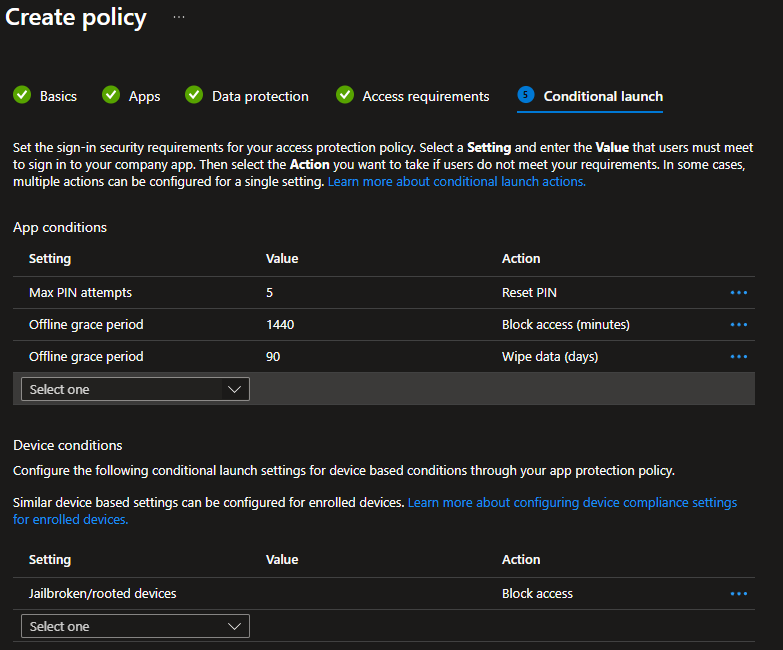
Finally, configure the conditional launch settings. This is where you can deny access to jailbroken devices, or devices that don’t comply with a minimum OS version.
All that’s left is to assign and save the policy.
Removing Data
So the whole point of this is to gain control of the data, and that involves the abilty to remove it when required. To do this, we need to create a wipe request in Intune.
- Login to the Intune Admin Centre.
- Navigate to Apps > App selective wipe.
- Click Create wipe request.
- Select User: Choose the person you want to wipe.
- Select Device: Intune will show a list of devices that user has used to sign into managed apps. Pick the specific phone you want to remove data from
- Click Create.
The next time the user opens Outlook or Teams, the app will see the "Wipe" command, immediately sign the user out, and delete all local work emails and files.
Conclusion
This is a big step forward in ensuring organisations retain control over their data, while still allowing users the freedom to access content on the move.
Unfortunately, there are no app protection policies available for MacOS, Windows or Linux devices, which seems a bit of a loophole. However, we can use a combination of conditional access policies and global settings to lock this down which I am working on currently and will hopefully post soon.
But at least we now have control over data on phones.