
PowerShell: Auditing MFA Methods in Microsoft 365
In previous posts we looked at different authentication methods and evaluated their strengths and weaknesses, then looked at session hijacking and device-bound session credentials. We’re now going to put that knowledge to practical use by auditing the MFA methods in use in a Microsoft environment.
Unless I’m missing something (which is entirely possible) Microsoft don’t make this as easy as they should, so we need to do it through PowerShell. This post will deal with writing that script, then I’ll do a follow up post on updating configuration to ensure users are using number matching, and administrators are using device bound sessions and passkeys.
Table of Contents
Setup
To get PowerShell to connect to Microsoft 365 seamlessly, we’re going to create an app in Azure and give it permission to read the relevant data.
A quick note on Enterprise Applications vs App Registrations. App Registrations is where you configure the app, Enterprise Applications is where it goes once it’s registered. If you need to change the app (new permissions, secrets etc), you need to go back to App Registrations and adjust it there.
Create App Registration
- Open the Entra Admin Centre (entra.microsoft.com)
- Go to Entra ID, App Registrations (on the left)
- Register the new app
- Click
- Give the app a name
- Leave ‘Accounts in the organizational directory only’
- Leave the redirect URL blank
- Click Register
- Grant the relevant API permissions
- Go to API permissions
- Click Add a permission
- Select the following:
- Microsoft Graph / Application / Group.Read.All
- Microsoft Graph / Application / User.Read.All
- Microsoft Graph / Application / Reports.Read.All
- Microsoft Graph / Application / AuditLog.Read.All
- Microsoft Graph / Application / UserAuthenticationMethod.Read.All
- Grant admin consent for your organization
- Add a client secret
- Go to Certificates & Secrets
- Click ‘New client secret’
- Enter a description and select an expiry period
- Copy the Value; you won’t see this again!
Install PowerShell Modules
You’ll need the Microsoft Graph PowerShell module:
Install-Module -Name Microsoft.Graph
Script
Let’s get into the script. It’s broken down into 7 main sections, so I’ll go through them one by one then give you the whole code.
Initialize Parameters
The first thing we need to do is initialize parameters. We could declare them variables, but we don’t want to hard code any secrets into a script. We also want to give the option of where to save the report.
param(
	[Parameter(Mandatory=$true)] [string]$TenantId,
	[Parameter(Mandatory=$true)] [string]$ClientId,
	[Parameter(Mandatory=$true)] [string]$ClientSecret,
	[Parameter(Mandatory=$true)] [string]$GroupId,
	[Parameter(Mandatory=$true)] [string]$ExportPath
)
Authenticate
We can now use those parameters to authenticate to the app we created earlier. This creates an access token using the Client ID and Client Secret parameters, then authenticates using that token. This is better than authenticating as a user as the script just gets the permission we granted earlier, and the access token typically expires after 60 minutes, which should be more than enough time.
$Body = @{
	Grant_Type    = "client_credentials"
	Scope         = "<https://graph.microsoft.com/.default>"
	Client_Id     = $ClientId
	Client_Secret = $ClientSecret
}
try {
	$Connection = Invoke-RestMethod -Uri "<https://login.microsoftonline.com/$TenantId/oauth2/v2.0/token>" -Method POST -Body $Body
	$secureToken = ConvertTo-SecureString $Connection.access_token -AsPlainText -Force
	Connect-MgGraph -AccessToken $secureToken -ErrorAction Stop
} catch {
	Write-Error "Auth failed: $($_.Exception.Message)"
	exit
}
Retrieve Group Members
Now we get the group members for the specified Group ID and store them in a variable.
$groupMembers = Get-MgGroupMember -GroupId $GroupId -All -Property "id,displayName,userPrincipalName,accountEnabled"
Fetch Authentication Methods
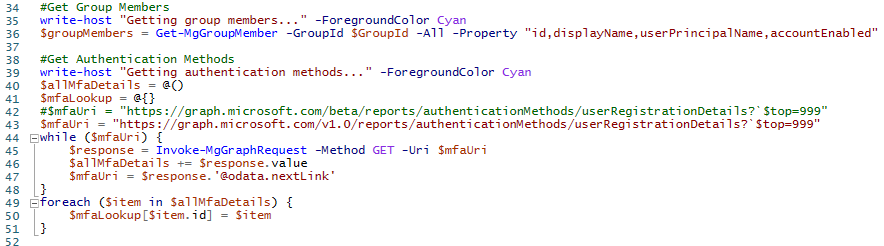
We could loop through the users we’ve just retrieved and get the authentication methods individually, but this will result in many more API calls, which may results in Microsoft throttling the requests, so we’re going to pull them all done in one go. It also tested quicker to pull the lot and deal with them locally.
We first need to declare one array (allMfaDetails) and one hashtable (mfaLookup)
$allMfaDetails = @()
$mfaLookup = @{}
We then need to deal with the problem of pagination and Graph limits. Microsoft Graph limits how much data it sends at once (usually 999 items). If your group has 5,000 users, Microsoft gives you "Page 1" and a link to "Page 2” and so on. We need to loop through the pages of the response until we run out to make sure we get them all.
I think you can do this more easily with the PowerShell graph commands, but I've always found them to be a bit more finicky. I'd much rather use my own queries and pull that data that way.
$mfaUri = "<https://graph.microsoft.com/beta/reports/authenticationMethods/userRegistrationDetails?`$top=999>"
while ($mfaUri) {
    $response = Invoke-MgGraphRequest -Method GET -Uri $mfaUri
    $allMfaDetails += $response.value
    $mfaUri = $response.'@odata.nextLink'
}
Finally we need to create our search index from the result.
foreach ($item in $allMfaDetails) {
	$mfaLookup[$[item.id](<http://item.id/>)] = $item
}
Process Data
Now we have all the data we can process it locally, by iterating through the users and looking them up in the search index. We then return the users name, email, account status and authentication methods to an object, which is stored in the report variable.
$report = foreach ($user in $groupMembers) {
    $mfaInfo = $mfaLookup[$user.Id]
    [PSCustomObject]@{
        DisplayName       = $user.AdditionalProperties.displayName
        UPN               = $user.AdditionalProperties.userPrincipalName
        AccountEnabled    = $user.AdditionalProperties.accountEnabled
        IsMfaCapable      = if ($mfaInfo) { $mfaInfo.isMfaCapable } else { $false }
        DefaultMethod     = if ($mfaInfo) { $mfaInfo.userPreferredMethodForSecondaryAuthentication } else { "None" }
        MethodsRegistered = if ($mfaInfo) { ($mfaInfo.methodsRegistered -join ", ") } else { "N/A" }
    }
}
Export to CSV
Now we have the report we can export it to a CSV file for analysis.
try {
    write-host "Exporting CSV Report to $ExportPath" -ForegroundColor Cyan
    $report | Export-Csv -Path $ExportPath -NoTypeInformation
} catch {
    Write-Error "CSV Export Failed: $($_.Exception.Message)"
    exit
}
Cleanup
Finally, we need to do a bit of cleanup. We disconnect the MS Graph session, and wipe any data stored in variables and memory. It’s a good habit to get into to ensure your scripts aren’t leaving data lying around.
Disconnect-MgGraph
$VarsToClear = @(
    "secureToken", "Connection", "Body", "ClientSecret",
    "allMfaDetails", "mfaLookup", "report", "groupMembers"
)
foreach ($var in $VarsToClear) {
    if (Get-Variable -Name $var -ErrorAction SilentlyContinue) {
        Remove-Variable -Name $var -Force -ErrorAction SilentlyContinue
    }
}
[System.GC]::Collect()
[System.GC]::WaitForPendingFinalizers()
And that’s it! We’ve taken a Microsoft 365 group and created a report of exactly what authentication methods they have registered and what their default method is.
Here is the full script:
<#
.SYNOPSIS
    Audits MFA registration details for a specific Microsoft 365 group.
.DESCRIPTION
    Uses Microsoft Graph SDK to audit a group, and outputs a CSV with MFA details for analysis
#>

#Initialise Parameters
param(
	[Parameter(Mandatory=$true)] [string]$TenantId,
	[Parameter(Mandatory=$true)] [string]$ClientId,
	[Parameter(Mandatory=$true)] [string]$ClientSecret,
	[Parameter(Mandatory=$true)] [string]$GroupId,
	[Parameter(Mandatory=$true)] [string]$ExportPath
)

#Authentication
write-host "Authenticating to Microsoft Graph" -ForegroundColor Cyan
$Body = @{
    Grant_Type    = "client_credentials"
    Scope         = "<https://graph.microsoft.com/.default>"
    Client_Id     = $ClientId
    Client_Secret = $ClientSecret
}
try {
    $Connection = Invoke-RestMethod -Uri "<https://login.microsoftonline.com/$TenantId/oauth2/v2.0/token>" -Method POST -Body $Body
    $secureToken = ConvertTo-SecureString $Connection.access_token -AsPlainText -Force
    Connect-MgGraph -AccessToken $secureToken -ErrorAction Stop
} catch {
    Write-Error "Auth failed: $($_.Exception.Message)"
    exit
}

#Get Group Members
write-host "Getting group members..." -ForegroundColor Cyan
$groupMembers = Get-MgGroupMember -GroupId $GroupId -All -Property "id,displayName,userPrincipalName,accountEnabled"

#Get Authentication Methods
write-host "Getting authentication methods..." -ForegroundColor Cyan
$allMfaDetails = @()
$mfaLookup = @{}
$mfaUri = "<https://graph.microsoft.com/v1.0/reports/authenticationMethods/userRegistrationDetails?`$top=999>"
while ($mfaUri) {
    $response = Invoke-MgGraphRequest -Method GET -Uri $mfaUri
    $allMfaDetails += $response.value
    $mfaUri = $response.'@odata.nextLink'
}
foreach ($item in $allMfaDetails) {
	$mfaLookup[$item.id] = $item
}

#Process Data
write-host "Processing data..." -ForegroundColor Cyan
$report = foreach ($user in $groupMembers) {
    $mfaInfo = $mfaLookup[$user.Id]
    [PSCustomObject]@{
        DisplayName       = $user.AdditionalProperties.displayName
        UPN               = $user.AdditionalProperties.userPrincipalName
        AccountEnabled    = $user.AdditionalProperties.accountEnabled
        IsMfaCapable      = if ($mfaInfo) { $mfaInfo.isMfaCapable } else { $false }
        DefaultMethod     = if ($mfaInfo) { $mfaInfo.userPreferredMethodForSecondaryAuthentication } else { "None" }
        MethodsRegistered = if ($mfaInfo) { ($mfaInfo.methodsRegistered -join ", ") } else { "N/A" }
    }
}

#Export CSV
try {
    write-host "Exporting CSV Report to $ExportPath" -ForegroundColor Cyan
    $report | Export-Csv -Path $ExportPath -NoTypeInformation
} catch {
    Write-Error "CSV Export Failed: $($_.Exception.Message)"
    exit
}

#Cleanup
write-host "Cleaning up..."
Disconnect-MgGraph
$VarsToClear = @(
    "secureToken", "Connection", "Body", "ClientSecret",
    "allMfaDetails", "mfaLookup", "report", "groupMembers"
)
foreach ($var in $VarsToClear) {
    if (Get-Variable -Name $var -ErrorAction SilentlyContinue) {
        Remove-Variable -Name $var -Force -ErrorAction SilentlyContinue
    }
}
[System.GC]::Collect()
[System.GC]::WaitForPendingFinalizers()
write-host "Done!" -ForegroundColor Cyan
Conclusion
We now have a robust method of auditing the MFA posture of users in a Microsoft 365 tenant. This script should be run routinely, providing snapshots of the MFA registrations over time.
In the next post I’ll look at putting what we've covered in the last three posts to create a secure authentication posture in Microsoft 365, using authentication strengths, registration campaigns and conditional access policies.
All of which can be configured without PowerShell.
I think.