
DHCP Fundamentals
DHCP is one of the fundamental services of networks. Without it, users would need to assign their own IP address, or administrators would need to do it for them.
Either way would be an administrative nightmare. IP conflicts would be commonplace.
Even home networks would require knowledge of IP ranges, gateways and DNS settings. Anyone with the slightest bit of IT knowledge would be constantly hammered by their elderly relatives to connect their new phone!
Thankfully, we have DHCP, or to give it it’s full name, Dynamic Host Configuration Protocol (RFC 2131). DHCP is built into all home routers, and automatically gives devices an IP address and the relevant details to get on the networks. For enterprise, DHCP servers handle the complicated business of assigning IP addresses across multiple VLANs.
So although as administrators we no longer need to worry about that, we do need to know how DHCP works, and what can break it. We need to understand how leases work, how scopes work, and what settings are available to us.
Table of Contents
DORA
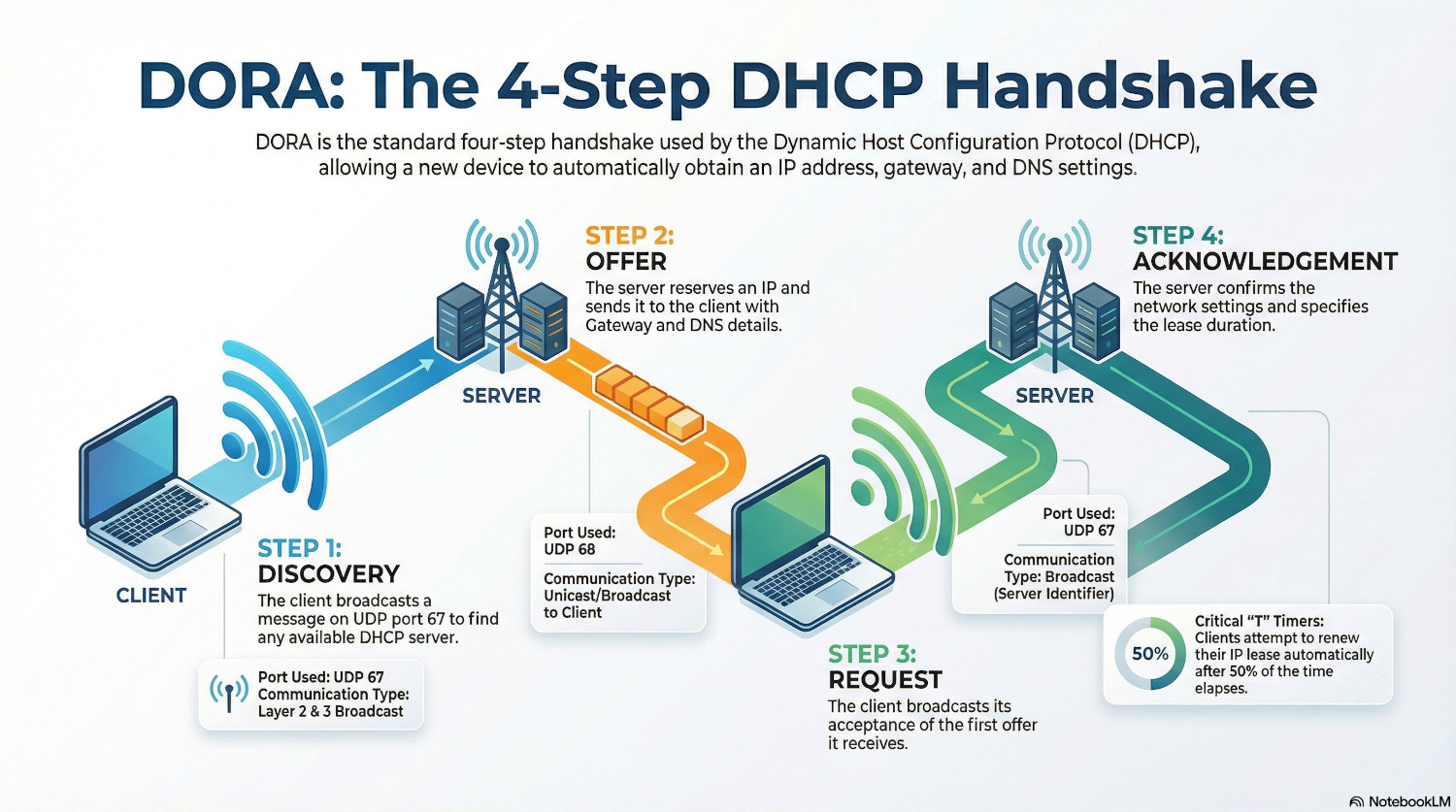
The DHCP process is often referred to as DORA, which stands for Discovery, Offer, Request, Acknowledgement. DORA is the four step handshake used for a device to obtain an IP address.
Discovery
The client joins the network and wants an IP address because it has no static configuration. It doesn’t know anything. It especially doesn’t know who is giving out IP addresses.
It sends out a DHCP Discover message. This is both a layer 2 broadcast message (destination MAC address FF:FF:FF:FF:FF:FF) and a layer 3 broadcast packet (destination IP 255.255.255.255) using UDP port 67. This is because the client has no idea where it is. It might be on a flat network or a corporate network, where the DHCP server is on a different subnet. I will explain how that works shortly.
Most devices will ignore a DHCP Discovery packet. But a DHCP server will respond with…
Offer
…a DHCP Offer. Upon receiving the Discover message it checks the lease table it has and reserves an available address. It sends an Offer packet back which contains the IP address for the client and any configured options; most commonly the default gateway address and the DNS server address it has configured for that network. Packets from the server to the client use UDP port 68.
Request
The Offer packet is exactly that, an offer. If there are multiple DHCP servers on the network the client may receive more than one offer.
The client will respond to the first offer it receives with a DHCP Request packet. This is an acceptance of the offer, and it is still a broadcast because then any other DHCP servers will receive it, see from the server identifier in it that their offer was not requested and cancel the reservation they made earlier.
Acknowledgement
This is the packet that locks it all in. The server sends all the options again, just to confirm them. It will also include the lease time - the length of time the client is allowed to use that IP address for before it needs to renew it.
The client configures it’s network stack with the settings, and off it goes.
DHCP Options
This is one of the most important features of a DHCP server; the ability to give out details about the network. Otherwise, a client would receive an IP address but have no idea how to get out to other networks.
DHCP options are defined in RFC 2132, which means they are universal across DHCP server vendors. The most commonly used options are for subnet mask (option 1), default gateway (option 3) and DNS servers (option 6).
Back in the offer stage, a DHCP client will provide a ‘wishlist’ of options, which is itself DHCP Option 55 - the Parameter Request List. This tells the server which options it would like. The server will then include them, if configured, in the offer packet.
DHCP Relay
Broadcast traffic does not traverse routers - it is only transmitted within a network segment. Otherwise, networks would become swamped with broadcast traffic from all other subnets and it would be a disaster.
But what if the DHCP server is on a different subnet? This isn’t uncommon, as servers should be kept segregated from client devices.
Well, the router needs to be configured as a DHCP relay by adding a dhcp helper address. This means when the router sees a DHCP broadcast packet, it re-encapsulates (strips layer 2 headers and modifies the layer 3 headers) it as a unicast packet to the DHCP server and sends it on. The server responds with the offer packet, and the router sends it back to the client MAC address.
DHCP Scopes
Modern networks don’t just have one subnet, otherwise there would be no need for DHCP relays. Networks have multiple VLANs, each with a designated IP range.
Instead of needing individual DHCP servers for each VLAN, the server can be configured with Scopes. Each scope is configured with a range of IP addresses.
When a router re-encapsulates a DHCP Discover packet, it includes a field called GIADDR - Gateway IP Address. It sets this to it’s own IP address and this is what the server looks at and finds the scope with the matching network to assign an IP from.
DHCP Leases
DHCP leases are one of the fine-tuning options for administrators. For most servers, the default lease is 8 days. That means the server keeps that IP address in it’s lease table for 8 days, and will not attempt to give it out to new devices.
Be careful with lease times - if you have a network with a high turnover of devices (guest wifi, for example) and a high lease time, you can quickly run out of addresses. A guest VLAN should have a short lease time of 8 hours instead of 8 days, to ensure addresses are returned to the pool when they are not in use.
The client has a something called T timers built in. After 50% of the lease time has passed, called “T1 -Renewal Timer”, the client will send a Request directly to the server that leased it the IP, asking to renew it. If the server is still active, the lease is renewed.
If the server doesn’t respond, the client waits until 87.5% of the lease time, called “T2 - Rebinding Timer” is up then it starts broadcasting, asking if there is any DHCP server that can renew it’s IP address.
If the client reaches the end of the lease without a response, it has to start the entire DORA process again.
DHCP Failover
A single point of failure is something all administrators strive to avoid, and when that point of failure is a DHCP server that is never more important.
DHCP failover allows two servers to share a DHCP scope, where they are both responsible for a portion of the available leases. They do this over port 647, and use TCP to ensure there is acknowledgement of the lease update by the partner server.
If one server goes down, the other server will continue processing leases. Despite only being responsible for a portion of the address pool, they share the entire lease database, allowing partner servers to handle renewal requests.
DHCP Security
Rogue DHCP servers are a nightmare and can easily disrupt a network. If a client receives a offer from a rogue DHCP server before the real one, it will accept it. It doesn’t know any better.
There are two possibilities here; incompetence or malicious intent. In the case of the former, the client will not receive the right settings (subnet mask, gateway and DNS servers) and will not get proper network access.
In the case of the latter, the rogue DHCP server gives out their own address as the gateway. This is configured to forward all traffic to the correct gateway after inspecting it, a classic man-in-the-middle attack.
The best defense against this is configuration DHCP snooping on switch interfaces. This tells the switch to block any DHCP offers it sees originating from a particular port. Only ports with legitimate DHCP servers attached should be allowed to send offers.
Below are the commands to configure DHCP snooping on a Cisco switch. The first command enables it globally on the switch, and the second turns it on for the specified VLANs. By default, DHCP snooping is applied to all ports.
The last step is to trust the interface where legitimate DHCP Offers can come from.
Switch(config)# ip dhcp snooping
Switch(config)# ip dhcp snooping vlan 10,20
Switch(config)# interface GigabitEthernet1/0/24
Switch(config-if)# ip dhcp snooping trust
Conclusion
Get some services right, and the network will work smoothly. Get them wrong, and you’ll forever be troubleshooting issues. DHCP is the probably the single most important service to implement correctly.
The most critical part is ensuring those DHCP helper addresses are correct on the gateway interfaces, otherwise the server will never hear the clients asking for addresses. Secure the edge by only trusting DHCP Offers from certain ports, and ensure reliability by configuring failover.
Remember DORA when troubleshooting - packets should have that clear order. If you’re running out of addresses, consider shortening the lease times to free up unused IPs.
Get all this right, and DHCP will work quietly in the background ensuring clients are connected smoothly.