
Configuring Account Lockouts in Entra ID and Active Directory

Multi factor authentication is absolutely crucial to protecting accounts, but let's not forget the first line of defence, the password.
Attackers have been cracking passwords since the dawn of, well, passwords. There are various methods (see here) and therefore various controls.
The easiest and most common attack is brute force. An attacker points a script at an account, and it tried every possible password it can calculate. Guaranteed to succeed, given enough time, all we can hope to do is slow it down by imposing a delay after a set amount of failed logins.
Current NCSC (UK) and NIST (US) guidance shifts away from strict lockouts toward throttling techniques and risk-based monitoring, but it’s still worth having the policies in place.
For hybrid environments there are two places to configure lockouts - Group Policy and Microsoft Entra ID, and consideration needs to be given to how these will interact with each other.
Determining Policy
The lockout settings will vary according to tolerance and preferences, and administrators should be aware of the potential for denial of service attacks - attackers deliberately locking out accounts to prevent legitimate access.
This is the guidance from Microsoft:
The Microsoft Entra lockout threshold must be less than the AD DS account lockout threshold. Set the values so that the AD DS account lockout threshold is at least two or three times greater than the Microsoft Entra lockout threshold. The Microsoft Entra lockout duration must be longer than the AD DS account lockout duration. The Microsoft Entra duration is set in seconds, while the AD DS duration is set in minutes.
This prevents attacks on Entra accounts locking out on-premises Active Directory accounts.
These are the Microsoft default settings, which I think are a good starting point.
Entra Account Lockout Threshold: 10
Entra Account Lockout Duration (seconds): 120
ADDS Account Lockout Threshold: 20
ADDS Account Lockout Duration (minutes): 1
Account Lockouts in Active Directory
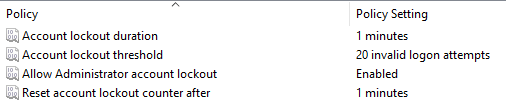
In a hybrid environment where devices are managed with Endpoint Manager, the group policy settings are limited in scope. However, they are still important and should be configured, and
If an attacker has gained access to a device and is trying to move laterally through the network, they may try to brute force entry to a server - GPO account lockouts will stop this. There may also be RADIUS authentication for certain services, and this should still be protected.
On the domain controller, we need to configure the group policy settings in the following location.
Computer Configuration > Policies > Windows Settings > Security Settings > Account Policies > Account Lockout Policy
There are four settings to configure.
| Account Lockout Duration | The time in seconds an account is locked for |
|---|---|
| Account Lockout Threshold | The amount of failed logins that trigger a lockout |
| All Administrator Account Lockout | This will include built-in administrator accounts if enabled |
| Reset Account Lockout Counter After | The period after which a counter of failed logins should be reset. |
Quick note: The Lockout Duration must be GREATER THAN or EQUAL TO the Reset Counter.
If you set the Reset Counter to 30 minutes but the Lockout Duration to only 15 minutes, the system will technically "unlock" the user, but if they type the wrong password again within 15 minutes they will be immediately locked out again.
Account Lockouts in Entra ID

In Entra ID, we need to go into Authentication Methods, and then into Password Protection.
There are only two settings applicable to lockouts here:
- Lockout Threshold
- Lockout Duration in Seconds
Enter the settings, hit save. Your accounts are now protected from brute force attacks.
Conclusion
Identity attacks have moved on significantly as providers provide more sophisticated defences for accounts and attackers look for increasingly exotic ways around them. But not all our systems are sophisticated and it takes time to shift enterprise IT environments away from legacy systems.
We can’t afford to neglect these systems, and ensuring the basic attack vectors are protected against is the least we can do.
Microsoft does do a lot by default now, using risk based automated threat assessment to determine whether a login is legitimate, but it helps everyone to explicitly configure these settings.
Now we've prevented brute force attacks let's configure banned passwords lists to prevent password sprays.